

Installing Ubuntu on a Pre-Installed Windows 8 Systemh1
Microsoft Windows really created a big mess for all Linux distributions. If you have a pre-installed Windows 8 system, you will probably never be able to install Ubuntu or any other OS in the normal way. This is because Windows 8 introduced several new features, of which 2 are:
- UEFI which substitutes what we have known as the BIOS (an alternative to)
- Secure Boot which prevents anything but the installed operating system, in this case Windows 8 from booting. This is no longer the case for Ubuntu since 12.04.2
To be frank, I have tried many alternative ways to install Ubuntu from within Windows but had no luck! I tried to do it like this…
Requirementsh2
Before starting, ensure you have:
- Universal USB installer
- Respective Version of Ubuntu
- 20 GB space in your Hard Drive
Checking Your System Configurationh2
We first need to know with what type of motherboard options we are dealing with. Open a terminal (By going to the start menu and typing powershell for example) and run the terminal as an Administrator (Right Click the app that will show in the start menu and select Run as Administrator). Now type Confirm-SecureBootUEFI. This can give you 3 results:
- True - Means your system has Secure boot and is Enabled
- False - Means your system has Secure boot and is Disabled
- Cmdlet not supported on this platform - Means your system does not support Secure boot and most likely you do not need this guide. You can install Ubuntu by simply inserting the LiveCD or LiveUSB and doing the installation procedure without any problems.
If you have it Enabled and have the necessary partitioning done then we can proceed with this guide.
Step-by-Step Installation Processh2
STEP 1: Access Windows 8 Advanced Startup Optionsh3
After booting into Windows 8, go to the power off options and while holding the SHIFT key, click on Restart.
(This is a really old trick on most Windows, even since Windows 3.1 where you hold a key to do something special when rebooting)
Windows 8 will show you a totally different restart window with advanced options.

STEP 2: Navigate to Troubleshoot Menuh3
When you get the menu, select Troubleshoot.
You will then get the following options.
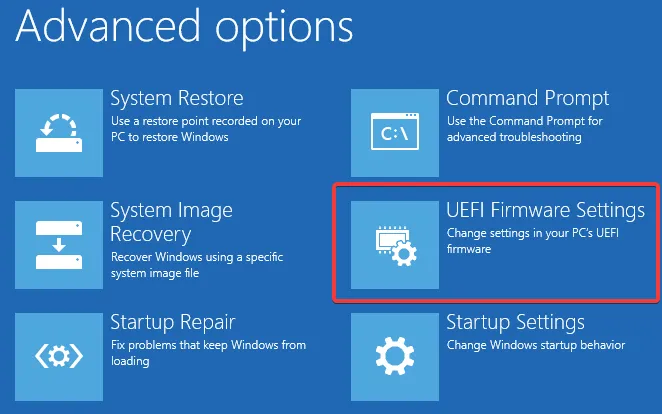 Select UEFI Firmware Settings.
NOTE - In the Spanish version of Windows 8, the option for UEFI Firmware Settings is not available in several laptops, tested Lenovo, HP and Acer. They do have an option to boot the computer and another custom menu will appear which lets you do a couple of things. In the case of Lenovo you will not have an option to install Ubuntu with Windows 8, the only option is to remove Windows 8 completely.
STEP 3: Access BIOS/UEFI Settingsh3
THIS IS AN IMPORTANT PART
The system will reboot and you will be allowed to go to the BIOS (If not press the appropriate key, some common are DEL, F2 or F10).
In this part I can’t help much since each BIOS is different for each Motherboard model. There are 2 options you can take here, both of which are optional since Ubuntu might install without any problems at all. You can either look for an option to disable Secure Boot or an option to disable UEFI. In some cases you will be able to find both, it will show in the BIOS as an option called Secure Boot or Enable UEFI.
STEP 4: Configure Secure Boot (If Needed)h3
If you find these options, then depending if you can not install Ubuntu with Secure Boot enabled then disable Secure Boot (Remember to report this as a bug using ubuntu-bug shim), to be able to still stay in UEFI mode and also be able to Boot with Ubuntu. In some motherboards, this will be the only option you actually need to change and also will be the only option you see related to UEFI because they will not offer the possibility to disable UEFI.
STEP 5: Install Ubuntuh3
- Boot from your Ubuntu LiveUSB or LiveCD
- Follow the standard Ubuntu installation procedure
- When prompted, choose to install Ubuntu alongside Windows 8
- Allocate the 20 GB space you prepared earlier
- Complete the installation process
Important Notesh2
- Backup your data before attempting to install Ubuntu
- Some laptop manufacturers (like Lenovo) may not support dual-boot installation with Windows 8
- The BIOS/UEFI interface varies by manufacturer, so options may be located in different menus
- Ubuntu 12.04.2 and later versions support Secure Boot, so you may not need to disable it
- If you encounter issues with Secure Boot enabled, disable it and report the bug using
ubuntu-bug shim
Troubleshootingh2
If you cannot access UEFI Firmware Settings:
- Try accessing BIOS directly by pressing DEL, F2, or F10 during boot
- Check your manufacturer’s documentation for specific key combinations
- Some systems may require different methods to access UEFI settings
If Ubuntu doesn’t boot after installation:
- Check if Secure Boot is still enabled and try disabling it
- Verify that UEFI boot mode is enabled
- Ensure the boot order is correct in BIOS settings
Conclusionh2
Installing Ubuntu alongside Windows 8/8.1 on a pre-installed system can be challenging due to UEFI and Secure Boot, but it’s definitely possible with the right approach. The key is understanding your system’s configuration and making the necessary adjustments in the BIOS/UEFI settings.
All done! Enjoy using Ubuntu in parallel with Windows 8/8.1.
Note: This guide is for educational purposes only. Always backup your data before making system changes. The installation process may vary depending on your hardware manufacturer and BIOS version.